Brochures and How to Read them to Benefit You.for office all in one: copier, printer, scanner, fax
Please click on the link(s) below to download user manuals for business and office used copier printers: all in one color or black and white copier printer scanner faxes. Note: these manuals are for learning to use your printer copier, not for copier repairs.
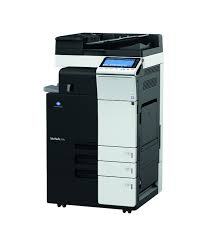
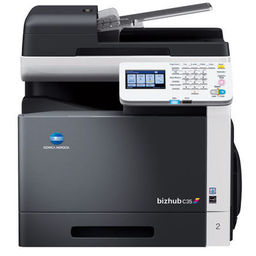
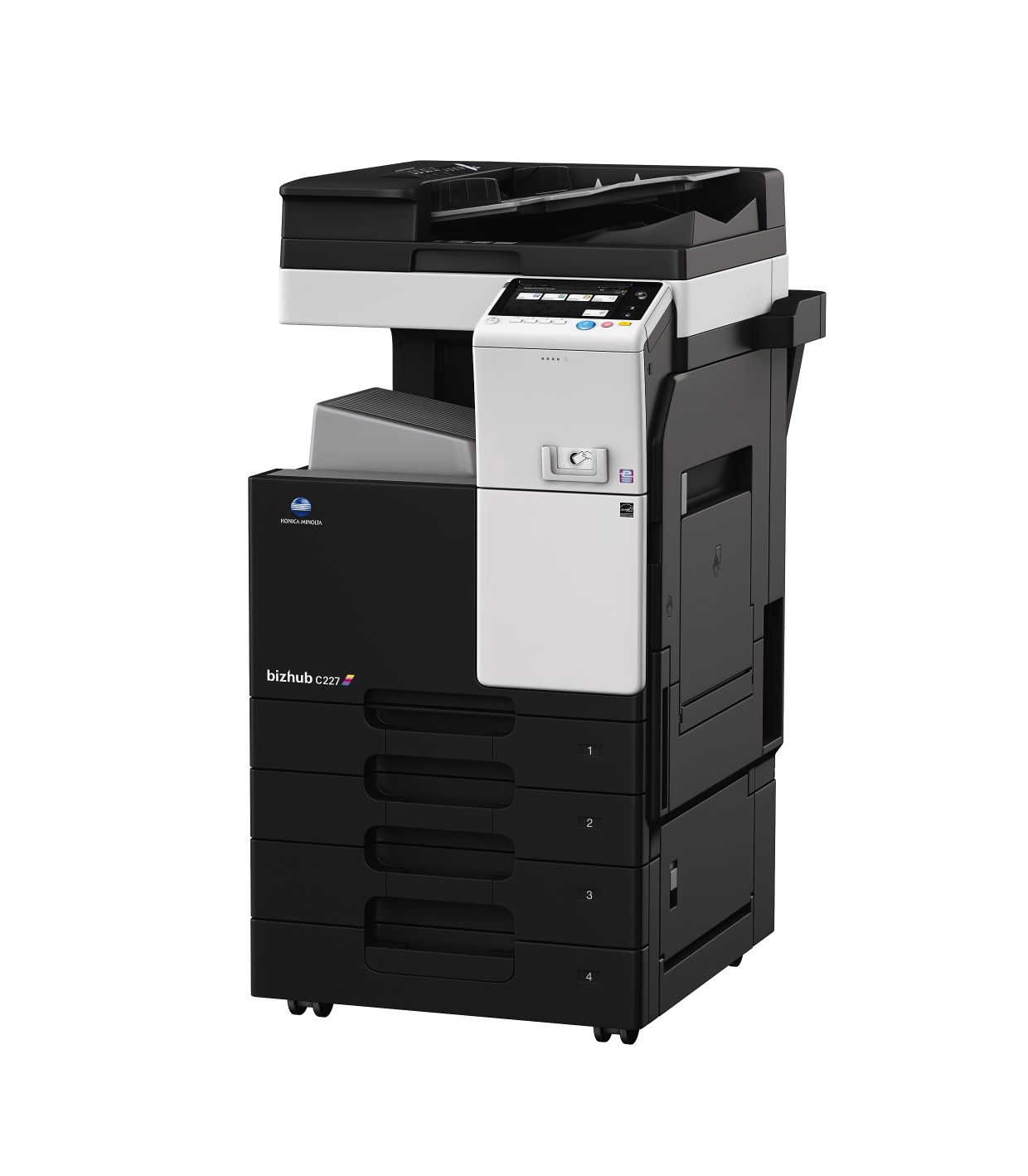
Navigating a Konica Minolta Bizhub manual can be intimidating due to the technical jargon. However, understanding a few core concepts and industry-specific terms will help you troubleshoot issues and optimize your office workflow without needing a technician for every minor adjustment.
User Mode vs. Admin. Mode
Most Bizhub manuals are divided into two distinct sections: User and Administrator.
User Functions: These cover basic operations like scanning to email, adjusting paper settings, and basic maintenance like clearing a paper jam.
Administrator Mode: This requires a password (often 12345678 or 1234567812345678 by default) and allows you to change network settings, manage security, and set up “Accounts” to track how many prints each department uses. This is especially useful for attorneys and schools.
Commercial Copier Manual Help
When using commercial copier printer manuals, it’s very important to understand a few key terms and concepts. Here are a few to help you understand the jargon in a manual:
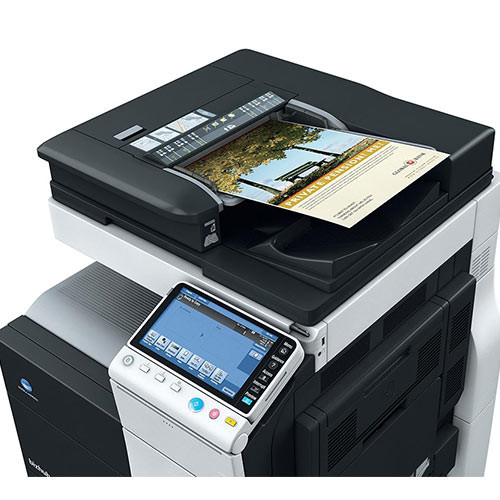
ADF / DF (Auto Document Feeder): This is the tray on top of the machine where you place a stack of originals. Modern Bizhubs often feature a Dual Scan Document Feeder, which scans both sides of a page at the same time, significantly increasing speed and reducing mechanical wear.
Bypass Tray: This is the fold-out tray usually located on the right side of the machine. It is designed for “non-standard” media like envelopes, labels, or heavy cardstock. Manuals emphasize using this tray for thick paper to avoid jamming the internal rollers of the main cassettes.
IP Address: Every office printer has a unique numerical “address” on your network (example10.1.10.150 or 192.168.1.150). Knowing this is crucial for the “Web Connection” feature, where you can type that address into any web browser to manage your printer from your desk.
Consumables (Toner vs. Drum): In a Bizhub manual, these are distinct. Toner is the “ink” powder, while the Drum Unit is the cylinder that transfers that powder to the paper. If your prints have streaks but you have plenty of toner, the manual will likely point you toward the Drum or the Imaging Unit.
Finishing: This refers to anything that happens after the page is printed. Common terms include Group (keeping all copies of page 1 together) vs. Sort/Collate (organizing them into complete sets) and Staple/Punch options.
Tips for Reading these Copier Brochures
Reading a Konica Minolta Bizhub brochure can feel like decoding a technical manual, but if you focus on four specific “data clusters,” you can quickly determine if a machine fits your office needs.
1. The “Speed and Feed” (Front Page)
The first thing to look for is the ppm (pages per minute), usually reflected in the model number (e.g., a Bizhub C368 prints 36 ppm). Also, check the monthly duty cycle. If your office prints 10,000 pages a month, don’t buy a machine rated for a maximum of 5,000.
2. Paper Handling & Finishers
Flip to the specifications grid. Look for Paper Capacity (standard vs. max). If your team hates refilling trays, you’ll want those optional large-capacity cassettes. More importantly, check the Finishing Options. This section tells you if the machine can handle stapling, hole-punching, or “tri-folding” (essential for mailers and brochures).
3. Resolution and Scanning
For high-end marketing materials, look for Print Resolution (1200 x 1200 dpi is the standard for crisp text). In the scanning section, prioritize Scanning Speed (ipm) and whether it has a Single Pass Dual Scan document feeder. This allows the machine to scan both sides of a page simultaneously, cutting your scanning time in half and reducing paper jams.
4. The “i-Series” and Security
Modern Bizhub brochures highlight the User Interface and Bitdefender Antimalware integration. Look for “HCP” (Home Circle Printing) or mobile connectivity features if your team works from tablets or phones.
While Konica Minolta bizhub brochures are excellent for comparing some copiers, they are marketing documents designed to showcase the device in its absolute best light. To make an informed buying or leasing decision, you should look past the “highlighted” features and focus on how the machine operates in your real-world office environment.
Copier Maximum Monthly Duty Cycle
This is arguably the most misleading number in any copier brochure. The “Maximum Duty Cycle” represents the absolute limit the machine can handle in a single month without total mechanical failure. In reality, consistently running a machine at its maximum will lead to frequent breakdowns and a shortened lifespan. Instead, focus on the Recommended Monthly Page Volume (RMPV). If a brochure touts a 150,000-page duty cycle, the actual healthy workload is likely closer to 10,000–20,000 pages.
Maximum Print Speeds-In A Lab That Is
Brochure speeds (measured in Pages Per Minute) are calculated using simple text documents with 5% ink coverage. As soon as you add high-resolution graphics, heavy paper stock, or complex finishing (like stapling), those speeds drop significantly. Furthermore, the “First Copy Out Time” usually ignores the time the machine takes to “wake up” from energy-save mode. If your office prints many small jobs throughout the day, the warm-up time is more important than the top-end cruising speed.
Optional bizhub Software and Hardware
Brochures often feature photos of a fully “trayed-out” machine with high-capacity feeders, booklet finishers, and large touchscreens. Most of these are optional add-ons not included in the base price. Phrases like “supports” or “available with” are red flags that the feature requires an extra investment. Similarly, advanced security features or mobile printing “capabilities” often require additional licenses or third-party software that isn’t part of the standard package.
Quality Claims By Subjective People
Ignore vague marketing terms like “vibrant color” or “unmatched reliability.” Every manufacturer claims these. Instead, look at the technical specifications for DPI (Dots Per Inch) and the type of toner used (such as Simitri HD). These hardware specs provide a much more objective measure of output quality than the adjectives used in the introduction.
By filtering out these marketing flourishes, you can focus on the metrics that actually impact your bottom line: energy consumption, actual paper capacity, and the footprint of the device in your workspace.
Monochrome office and desktop multifunction copiers
konica-minolta-bizhub-25-brochure
konica-minolta-bizhub-25e-brochure
konica-minolta-bizhub-224e-brochure
konica-minolta-bizhub-284e-Spec-Sheet
konica-minolta-bizhub-364e-brochure
konica-minolta-bizhub-454e-brochure
konica-minolta-bizhub-554e-brochure
konica-minolta-bizhub-654e-brochure
Konica-minolta-bizhub-654e-Spec-Sheet
Local IT support services company, on-site and Remote Support
Turns the traditional IT helpdesk on its head, offering proactive remote support and network monitoring for your systems, detecting and fixing problems before they happen. Gulf Office Technologies is also very affordable and flexible.
IT and the cloud
The new era is a cloud first, mobile first world. Businesses are moving to the Cloud because they need mobile working and flexibility. Gulf’ IT Cloud services allow you to tailor your Cloud solution to the needs of your business, and has a full variety of optional features to bring tangible benefits to your business. Cloud IT support can be daunting, but Gulf will be there offering advice every step of the way from initial design to full user support. Gulf Office Tech’s Cloud IT services are broken down into three levels of support, each designed for different business needs.
Hardware and software training/installs
Whether basic or complex, Gulf Offc. Tech. helps you with installations, software training, hardware training, and much more. All technicians are people friendly, and speak YOUR language.
Fully-managed IT-Florida’s Suncoast
Offering the greatest level of IT support, fully managed support takes away the pain of running your own IT, with regular on-site support and 24/7 network monitoring. If you want your network on “lock down,” consider managed IT.
Affordable IT solutions for Florida’s Suncoast
Low cost IT solution suited to businesses with smaller footprints and needs, where you can choose what you want in the Cloud and IT is delivered a la carte, as a service. Either we can help you choose the best IT services, or you can choose what IT support is best for your business, while saving money!
Office Computer software and technology training
- Are you a a small business person, who doesn’t have the time to learn computer programs and functions?
- Do you wonder what that button in excel does, or what a pivot table is?
- Do you just not know where to start to make your business processes more efficient?
- Did you look up your software trouble on the internet, and it just brought you to a new problem?
If your answer is yes to any of the above questions, let us help you!
If you are a small business looking for IT support, see how we can be your IT company for life, or how our copier printer rentals and scanners can make your business more efficient.
Our highly qualified computer technicians will help you automate your business with one on one software and process training. We know how to explain computers, programs, and how to make your office more automated. We understand that learning software and hardware in real life terminology will help you understand the best. Our techs are friendly, local, and understanding. Furthermore, we are affordable, flexible, and ready to serve you today!
Gulf Office Technologies supports training for: Microsoft Office including MS Word, MS Excel, MS Publisher, MS Outlook, Google drive collaboration, Google calendar, contact management programs, web design, and internet marketing, just to name a few. You name it, if we can’t help you, we’ll find help for you.
In home computer, smartphone, tablet, and just about any technology training and installation
Do you need help setting up your computer, iphone or smartphone, tablet, or Audio Visual components? We can do it. We are friendly, understanding, trustworthy, local, and patient. We will come to your house, and take the time to teach you as much or little as needed. Even if you don’t know where to start, we can help you. If you consider yourself technologically inept, then GREAT! I was once too, until someone helped me. We all learn technology by either being taught, making mistakes, or luck. We can save you time and aggravation by letting you have all of our technology mistakes, luck, and learning help you!
Local IT company services-Venice-Sarasota-Bradenton-St.Petersburg
Is your Suncoast area office network to small for a server, and you have copier rentals through us, but your network is too big to handle yourself? Our experienced local IT professionals can help. We can either come to your office or remotely fix many office network and computer problems. We specialize in small office and home networks including computer cleaning(malware, virus removal, tune-ups), computer network setup, network security and backups, and in person software training. You only pay for what we repair, no long term contracts. All of our rates are affordable and guaranteed. For any server based networks, we partner with a reasonable and reputable local company, just ask us. We also specialize in home computer services.
Local computer cleaning: malware removal, virus removal, computer tune ups
When you are renting copy machines from us, and you see at times your computer is running slow, you are receiving pop ups, or it doesn’t even turn on. You google your computer problem, only to cause more problems. You call the local nerd squad at the office store, and get nowhere. You call us, and we are there within 4 business hours. This response time is not just for copier repairs. Alternatively, we can remotely log on to your computer and help remove the malware or virus in as little as 1 hour. We also give a FREE “tune-up” your computer. Although we love to make money on computer service calls, we teach you how to avoid future computer and network issues. Hopefully, you will refer us to another business, as we are just not another businesses leasing a copy machine to you.
Small business network setup
Many small businesses with a printer on rent through us, think they can just plug their computers into the wall and your network is setup. Others say they don’t need a network, they have a hub or a router… Nothing is further from the truth. Small business network architecture, if done right, is a powerful way to streamline your business processes and protect your confidential documents and secrets. Did you know that if a network is setup incorrectly(very easy to do)you may have the following problems: loss of internet, unable to scan or print, confidential files get shared with anyone on your network, loss of email, email and network malware and viruses, etc….the list goes on. For a fair price, our local computer technicians can take care of this for you, which complements our commercial printers for lease program.
Securely and automatically backing up your critical data
With many of our customers who take advantage of our copy machine sales, we have many offices that say they don’t need a backup data service. Some just buy an annual subscription to an online backup system. Others just think their extra hard drive or thumb drive will backup their critical data.
There are pitfalls to these and many data back up systems. If you use an online backup system, how long will it take to fully restore lost data? 24 hours, 48 hours or more? Can your business run like this? Furthermore, what if their cloud server loses your data? What kind of compensation or recourse can you expect. Well they are probably located in Utah or Bangalore, and the contract says all disputes must be done there.
As far as external hard drives…These things are not reliable at all. Unless they are solid state hard drives, they have a limited shelf life. The answer lies in redundancy. You need a fair service provider who can regularly backup your data, recover lost data quickly, who is locally operated and owned, and understands redundancy in network backups. Let us earn your networking business, in addition to your office equipment rental!